iris
irisdocs

Documentation

Everything you need to get the most out of Iris.

TypeScriptJavaScriptGoPython

Overview

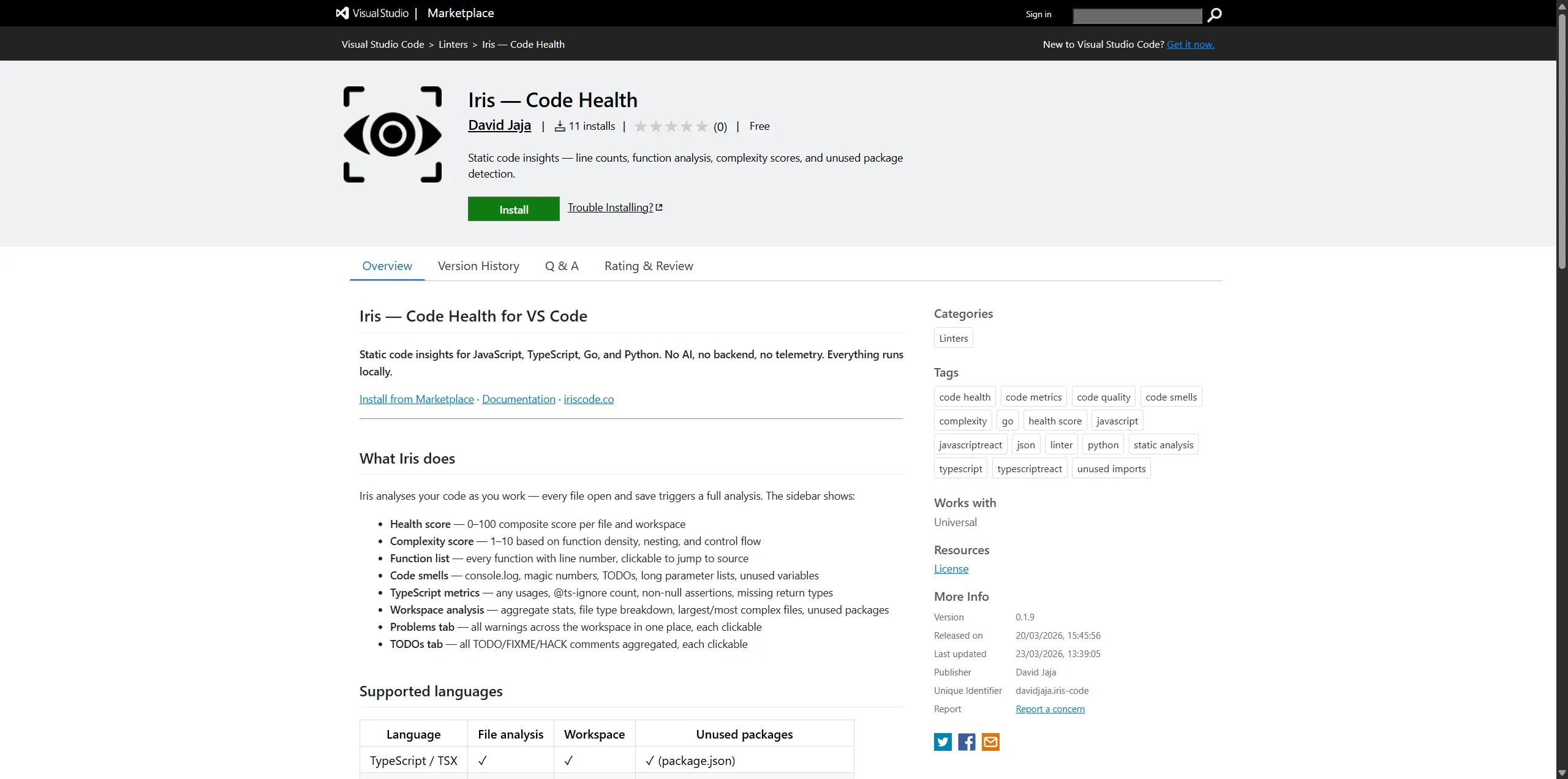
Iris is a VS Code extension for static code insights — health scores, complexity analysis, function detection, code smell detection, and TypeScript quality metrics. It supports JavaScript, TypeScript (JS/JSX/TS/TSX), Go, and Python. Everything runs locally — no backend, no AI, no telemetry.

  • Automatic analysis on every file open and save
  • Health score from 0 - 100 per file and workspace
  • Complexity scoring, function lists, import tracking
  • Code smell detection with clickable jump-to-line
  • Workspace and folder-level aggregated stats
  • Configurable thresholds via .irisconfig.json or VS Code settings

Installation

Install Iris from the VS Code Marketplace — it's free.

  1. 1Open VS Code and go to the Extensions panel (Ctrl+Shift+X)
  2. 2Search for Iris and click Install
  3. 3The Iris icon appears in the Activity Bar
  4. 4Open any JS, TS, Go, or Python file — the sidebar populates instantly

Quick Start

Once installed, Iris works with zero configuration. Here's what to expect:

  • Open any supported file — the File tab shows the health score, complexity, functions, and smells
  • Run Iris: Analyse Workspace from the command palette to scan your entire project
  • Right-click any folder in Explorer and choose Iris: Analyse This Folder for scoped analysis
  • Click any warning or finding in the sidebar to jump directly to that line
  • Add a .irisconfig.json at your project root to share thresholds across your team
Tip: Iris auto-refreshes the File tab on every save — no need to trigger analysis manually.
File Analysis

Iris analyses every supported file automatically as you open or save it. The File tab shows:

  • Health score — 0–100 composite score penalising warnings, deep nesting, long functions, and debug prints
  • Language badge — Go / TypeScript / JavaScript / Python badge in the file header
  • Line counts — total lines, blank lines, code lines
  • Complexity score — 1–10 score based on function density, nesting depth, control flow, and import count
  • Function list — all detected functions with line numbers, each clickable to jump to source
  • Import tags — third-party packages detected via import statements
  • Unused imports — named/default/namespace bindings that are imported but never referenced (TypeScript/JavaScript only)
Note: Unused import detection is TypeScript/JavaScript-only. Go and Python handle this at the compiler/runtime level.

TypeScript Metrics

Shown only for TS/JS files; hidden automatically for Go and Python.

MetricWhat it tracks
any usagesCounts explicit : any / as any. Each occurrence is clickable.
@ts-ignoreCount of TypeScript suppressions
Non-null assertionsCount of ! usages
Missing return typesExported functions without an explicit return type annotation

Python Support

Full Python analysis with language-aware routing:

  • Functions — all def declarations detected (top-level and class methods), with line numbers
  • Third-party importsimport pkg and from pkg import ...; stdlib modules are excluded automatically
  • print() calls — flagged in Code Lens and Code Smells
  • No public functions warning — flags if all functions start with _ (private by convention)
  • Unused Python packages — workspace scan reads requirements.txt and pyproject.toml and flags declared packages never imported across .py files
  • __pycache__, .venv, venv — skipped automatically during scans
  • Parameter listsself and cls are excluded from the parameter count

Go Support

Full Go analysis with language-aware routing:

  • Functions — both top-level func Name( and methods func (r *T) Name( detected
  • Third-party imports — packages with a dot in the root path segment (e.g. golang.org/x/..., pkg.example.com/...)
  • Debug printsfmt.Print*, log.Print*, log.Fatal*, log.Panic* flagged in Code Lens and Code Smells
  • No-exports warning — flags if no capitalised (exported) function names are found
  • Unused Go modules — workspace scan reads go.mod and flags declared modules never imported across .go files
  • vendor/ directory — skipped automatically during workspace/folder scans

Code Smells

Iris detects several code smell patterns across all supported languages. Every finding is clickable to jump to the line.

SmellDetected inToggle setting
Debug prints — console.log/warn/errorJavaScript / TypeScriptenableConsoleLogWarnings
Debug prints — fmt.Print* / log.Print* / log.Fatal* / log.Panic*GoenableConsoleLogWarnings
Debug prints — print()PythonenableConsoleLogWarnings
Magic numbers — raw numeric literals (excluding 0 and 1) used inline without a named bindingAll languagesenableMagicNumberDetection
TODOs / FIXMEs / HACKs — from // comments (JS/TS, Go) and # comments (Python)All languagesenableTodoDetection
Long parameter lists — functions with too many parametersAll languagesenableLongParamDetection
Unused variables — declared but never referenced elsewhere in the fileAll languagesenableUnusedDetection
Unused functions — defined but never called within the file and not exportedAll languagesenableUnusedDetection
Tip: Disabling a toggle hides both the stat counter and the detail section from the sidebar entirely — useful for reducing visual clutter.

Warnings

Five warning types, each with configurable severity:

TypeDefault severityTriggers at
file-too-longerror / warning> threshold / > ⅔ threshold
function-too-longerror / warning> 2× threshold / > threshold
too-many-functionswarning> maxFunctionsPerFile
too-many-importswarning> maxImportsPerFile
no-exportsinfono exported identifier found
Tip: Override severity per warning type using severityOverrides in .irisconfig.json.

Workspace Analysis

Run Iris: Analyse Workspace from the command palette or the Scan Workspace button in the Workspace tab to get:

  • Total files, directories, lines, functions
  • File type breakdown with an interactive pie chart
  • Largest files (top 5) and most complex files (top 5)
  • Unused packages declared in package.json, go.mod, requirements.txt, or pyproject.toml but never imported
  • All warnings aggregated into a Problems tab with error count badge
  • All TODOs aggregated into a TODOs tab, grouped by type
  • Interactive file tree grouped by directory
  • Results are cached — navigate away and come back without re-scanning

Folder Analysis

Right-click any folder in Explorer and choose Iris: Analyse This Folder, or click Scan Current Folder in the Folder tab to analyse the folder of the currently open file.

Results appear in the dedicated Folder tab, which auto-activates on scan. The Folder tab shows the same stats, pie chart, ranked files, and tree as the Workspace tab, plus Rescan and Clear buttons.

Problems & TODOs

The Issues and TODOs tabs populate from the most recent folder or workspace scan. Each row shows severity (colour-coded dot), filename, line number, and message — all clickable to jump to source.

  • Issues tab badge shows the error count (red) or total issue count
  • TODOs tab badge shows the total count of TODO/FIXME/HACK items found
  • Findings persist until you run a new scan or click Clear

Code Lens

Inline hints appear above functions that exceed the length threshold. Language-aware:

  • JS/TS: hints next to every @ts-ignore and console.log
  • Go: hints next to fmt.* / log.* debug print calls
  • Python: hints next to print() calls

Disable Code Lens via VS Code setting: iris.enableCodeLens: false

Status Bar

Shows health score, line count, and function count for the active file. Turns warning/error colour based on health score and complexity threshold. Works for all supported languages.

Disable via VS Code setting: iris.enableStatusBar: false

VS Code Settings

Open settings with Ctrl+, and search "Iris" to configure:

SettingDefaultDescription
iris.functionLengthThreshold40Lines before a function is flagged
iris.fileLengthThreshold300Lines before a file is flagged
iris.maxFunctionsPerFile10Max functions before flagging
iris.maxImportsPerFile8Max third-party imports before flagging
iris.maxParameterCount5Max parameters before flagging a function
iris.complexityThreshold7Complexity score that triggers status bar warning
iris.enableConsoleLogWarningstrueFlag console.log / print() / fmt.Print* statements
iris.enableMagicNumberDetectiontrueFlag raw numeric literals used without a named binding
iris.enableTodoDetectiontrueFlag TODO / FIXME / HACK comments
iris.enableLongParamDetectiontrueFlag functions with too many parameters
iris.enableUnusedDetectiontrueFlag unused variables and functions
iris.enableMissingReturnTypeWarningstrueFlag exported functions missing return types (TS/JS only)
iris.enableCodeLenstrueShow inline Code Lens hints
iris.enableStatusBartrueShow Iris item in status bar
iris.severityOverrides{}Override severity per warning type
iris.ignoreFiles["**/*.test.ts", ...]Glob patterns for files to skip in workspace analysis
iris.ignoreFunctions[]Function names Iris should never flag

.irisconfig.json

Drop a .irisconfig.json at your project root and commit it. Every developer on the team runs Iris with the same thresholds — no per-machine drift.

Priority order: .irisconfig.json → VS Code settings → defaults

.irisconfig.json
{
  "functionLengthThreshold": 60,
  "enableConsoleLogWarnings": false,
  "ignoreFiles": [
    "**/*.test.ts",
    "**/*.spec.ts",
    "**/generated/**"
  ],
  "ignoreFunctions": ["main", "handler"],
  "severityOverrides": {
    "no-exports": "warning",
    "file-too-long": "warning"
  }
}

Only include the keys you want to override — anything omitted falls back to VS Code settings, then defaults.

Severity Overrides

Override the severity of any warning type on a per-project basis:

Warning keyValid severities
file-too-longerror · warning · info
function-too-longerror · warning · info
too-many-functionserror · warning · info
too-many-importserror · warning · info
no-exportserror · warning · info

Commands

All commands are available via the command palette (Ctrl+Shift+P):

CommandDescription
Iris: Analyse Current FileManually re-analyse the active file
Iris: Analyse WorkspaceAnalyse all JS/TS/Go/Python files in the workspace
Iris: Analyse This FileRight-click a file in Explorer to analyse it
Iris: Analyse This FolderRight-click a folder in Explorer to analyse it
Iris: Analyse Current FolderAnalyse the folder of the currently open file
Iris: Show Welcome PageOpen the Getting Started welcome page

Context Menus

Iris adds entries to the right-click menu in two places:

Explorer (file tree)

  • Right-click a JS/TS/Go/Python file → Iris: Analyse This File
  • Right-click a folder → Iris: Analyse This Folder
  • Right-click anywhere → Iris: Analyse Workspace

Editor (inside a file)

  • Iris: Analyse Current File
  • Iris: Analyse Current Folder
  • Iris: Analyse Workspace